Firewalld Basic Command
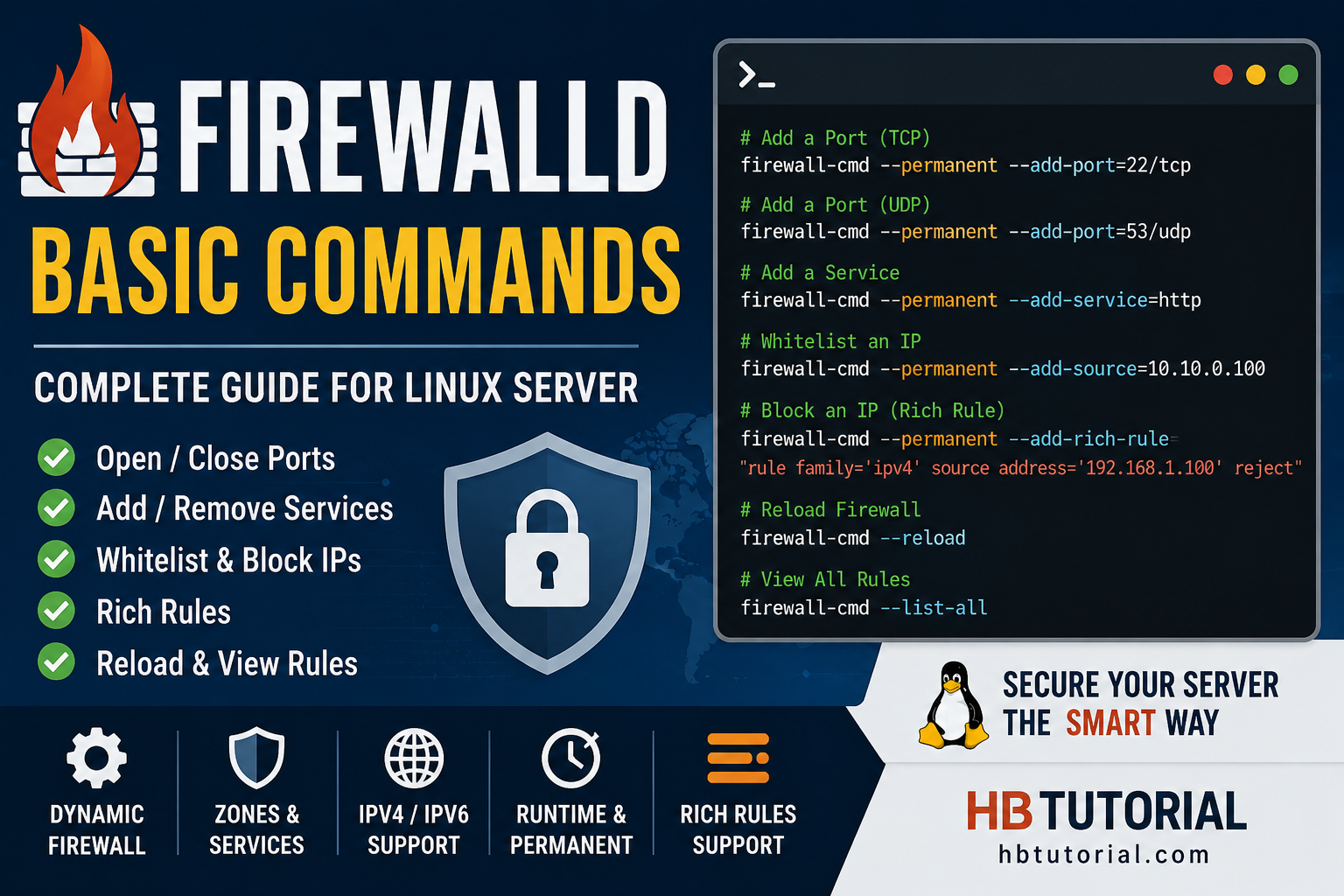
Firewalld Basic Command
Firewalld provides a dynamically managed firewall with support for network/firewall zones that define the trust level of network connections or interfaces. It has support for IPv4, IPv6 firewall settings, ethernet bridges and IP sets. There is a separation of runtime and permanent configuration options. It also provides an interface for services or applications to add firewall rules directly.
Benefits of using firewalld
Changes can be done immediately in the runtime environment. No restart of the service or daemon is needed.
With the firewalld D-Bus interface it is simple for services, applications and also users to adapt firewall settings. The interface is complete and is used for the firewall configuration tools firewall-cmd, firewall-config and firewall-applet.
The separation of the runtime and permanent configuration makes it possible to do evaulation and tests in runtime. The runtime configuration is only valid up to the next service reload and restart or to a system reboot. Then the permanent configuration will be loaded again. With the runtime environment it is possible to use runtime for settings that should only be active for a limited amount of time. If the runtime configuration has been used for evaluation, and it is complete and working, then it is possible to save this configuration to the permanent environment.
Features
- Complete D-Bus API
- IPv4, IPv6, bridge and ipset support
- IPv4 and IPv6 NAT support
- Firewall zones
- Predefined list of zones, services and icmptypes
- Simple service, port, protocol, source port, masquerading, port forwarding, icmp filter, rich rule, interface and source address handlig in zones
- Simple service definition with ports, protocols, source ports, modules (netfilter helpers) and destination address handling
- Rich Language for more flexible and complex rules in zones
- Timed firewall rules in zones
- Simple log of denied packets
- Direct interface
- Lockdown: Whitelisting of applications that may modify the firewall
- Automatic loading of Linux kernel modules
- Integration with Puppet
- Command line clints for online and offline configuration
- Graphical configuration tool using gtk3
- Applet using Qt4
Systemctl and Firewalld
Enable firewalld
Start firewalld
After the firewalld service is enabled, you’ll need to start it manually the first time. This is how you would manually start firewalld if it were not already running.
# systemctl start firewalld
Stop firewalld
When troubleshooting rules and connection issues, you may need to stop the fireawlld service momentarily. You can stop the service with the following command.
# systemctl stop firewalld
Restart firewalld
If for some reason, you need to restart the service, you can do that with the systemctl restart command.
# systemctl restart firewalld
Firewalld status
Checking the status of the service gives us the most meaningful and informative output. Here you can see whether the service is enabled, running, failed, or anything else.
# systemctl status firewalld
In this example output, you can see that the service is enabled, active, and running on the server. If it were not running or in a failed state, this would be displayed.
[root@centos-7 ~]# systemctl status firewalld
? firewalld.service - firewalld - dynamic firewall daemon
Loaded: loaded (/usr/lib/systemd/system/firewalld.service; enabled; vendor preset: enabled)
Active: active (running) since Tue 2020-07-11 22:50:32 EST; 1h 0min ago
Main PID: 808 (firewalld)
CGroup: /system.slice/firewalld.service
??808 /usr/bin/python -Es /usr/sbin/firewalld --nofork --nopid
Now that we have firewalld running, we can get down to set the configuration. We can open ports, allow services, whitelist IPs for access, and more. In all of these examples, we include the –permanent flag. This is important to make sure a rule is saved even after you restart firewalld, or reboot the server. Once you’re done adding new rules, you need to reload the firewall to make the new rules active.
Add a Port for TCP or UDP
You do have to specify TCP or UDP and to open a port for both. You will need to add rules for each protocol.
firewall-cmd --permanent --add-port=22/TCPfirewall-cmd --permanent --add-port=53/UDP
Remove a Port for TCP or UDP
Using a slight variation on the above structure, you can remove a currently open port, effectively closing off that port.
firewall-cmd --permanent --remove-port=444/tcp
Add a Service
These services assume the default ports configured within the /etc/services configuration file; if you wish to use a service on a non-standard port, you will have to open the specific port, as in the example above.
firewall-cmd --permanent --add-service=sshfirewall-cmd --permanent --add-service=http
Remove a Service
As above, you specify the remove-service option, and you can close off the port that is defined for that service.
firewall-cmd --permanent --remove-service=mysql
Whitelist an IP Address
To whitelist or allow access from an IP or range of IPs, you can tell the firewall to add a trusted source.
firewall-cmd --permanent --add-source=10.10.0.100
You can also allow a range of IPs using what is called CIDR notation. CIDR is outside the scope of this article but is a shorthand that can be used for noting ranges of IP addresses.
firewall-cmd --permanent --add-source=10.10.0.0/24
Remove a Whitelisted IP Address
To remove a whitelisted IP or IP range, you can use the –remove-source option.
firewall-cmd --permanent --remove-source=10.10.0.100
Block an IP Address
As the firewall-cmd tool is mostly used for opening or allowing access, rich rules are needed to block an IP. Rich rules are similar in form to the way iptables rules are written.
firewall-cmd --permanent --add-rich-rule="rule family='ipv4' source address='192.168.1.100' reject"
You can again use CIDR notation also block a range of IP addresses.
firewall-cmd --permanent --add-rich-rule="rule family='ipv4' source address='192.168.1.0/24' reject"
Whitelist an IP Address for a Specific Port (More Rich Rules)
We have to reach back to iptables and create another rich rule; however, we are using the accept statement at the end to allow the IP access, rather than reject its access.
firewall-cmd --permanent --add-rich-rule='rule family="ipv4" source address="192.168.1.100" port protocol="tcp" port="3306" accept'
Removing a Rich Rule
To remove a rich rule, use the option —remove-rich-rule, but you have to fully specify which rule is being removed, so it is best to copy and paste the full rule, rather than try to type it all out from memory.
firewall-cmd --permanent --remove-rich-rule='rule family="ipv4" source address="192.168.1.100" port protocol="tcp" port="3306" accept'
Saving Firewall Rules
After you have completed all the additions and subtraction of rules, you need to reload the firewall rules to make them active. To do this, you again use the firewall-cmd tool but using the option –reload.
firewall-cmd --reload
Viewing Firewall Rules
After reloading the rules, you can confirm if the new rules are in place correctly with the following.
firewall-cmd --list-all
Here is an example output from the –list-all option, you can see that this server has a number of ports, and services open in the firewall along with a rich rule (that forwards one port to another).
[root@centos-7 ~]# firewall-cmd --list-all
public (default, active)
interfaces: enp1s0
sources: 10.10.0.0/24
services: dhcpv6-client dns http https mysql nfs samba smtp ssh
ports: 443/tcp 80/tcp 5900-5902/tcp 83/tcp 444/tcp 3260/tcp
masquerade: no
forward-ports:
icmp-blocks:
rich rules:
rule family="ipv4" source address="10.10.0.0/24" forward-port port="5423" protocol="tcp" to-port="80"
Thank you !!!