VICIdial API Leads Call Count Report
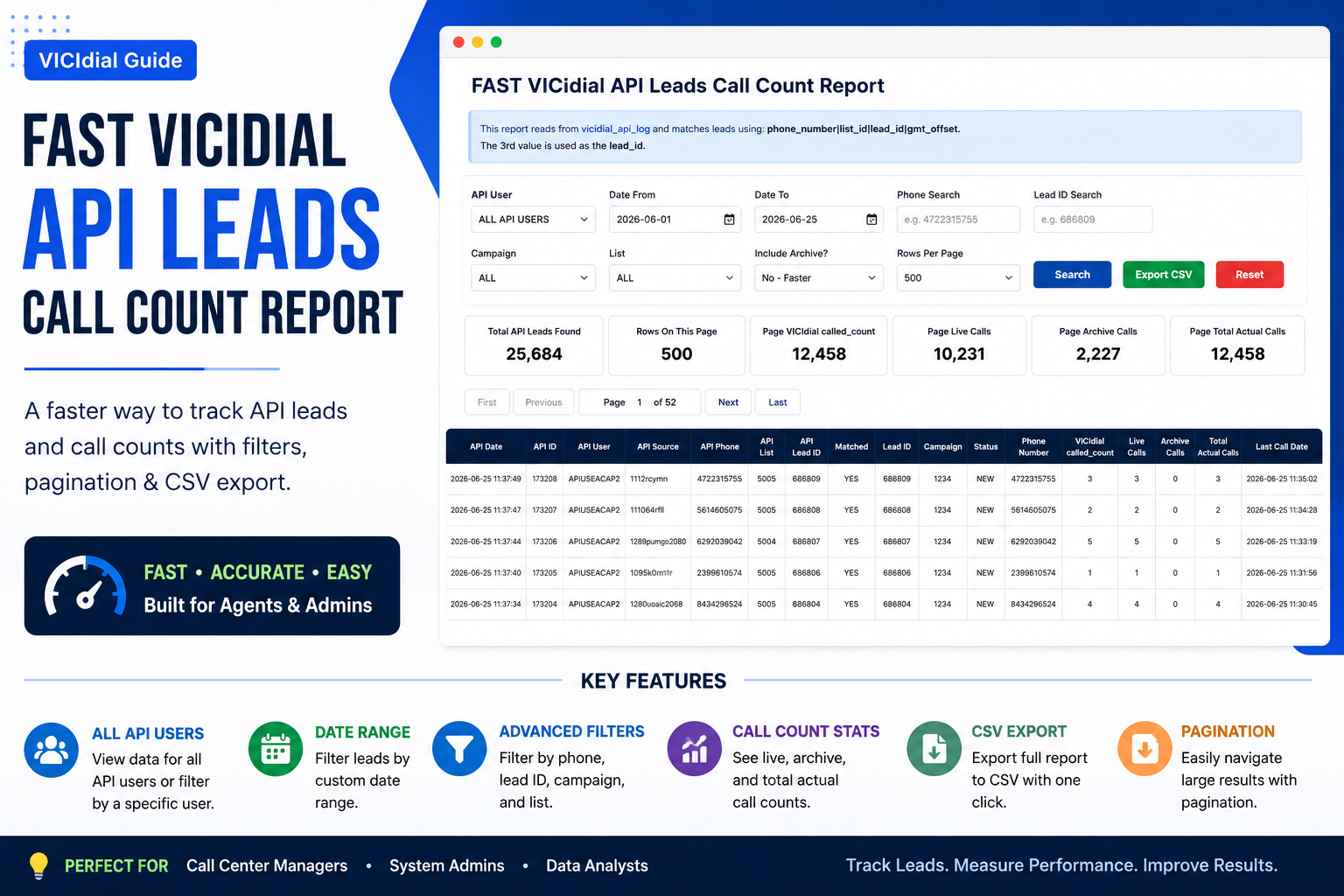
How to Create a Fast VICIdial API Leads Call Count Report with PHP
In this tutorial, I will show you how to create a custom PHP report for VICIdial that displays all leads added through the VICIdial API. This report can show the API user, lead ID, phone number, campaign, list, current status, VICIdial called count, live call count, archive call count, and total actual call count.
This is useful if you are using API users like APIUSEACAP2 to upload leads into VICIdial and you want to track how many times those leads were called.
What This Report Can Do
- Show leads added by one API user or all API users
- Search by date range
- Search by phone number
- Search by lead ID
- Filter by campaign
- Filter by list ID
- Show VICIdial
called_count - Show actual call count from
vicidial_log - Optionally include
vicidial_log_archive - Export report to CSV
- Use pagination for faster loading
- Disable auto-loading results when opening the page
Step 1: Confirm the API User Exists
Login to your VICIdial database:
mysql -u root -p asteriskRun this SQL command:
SELECT
    user,
    full_name,
    user_group,
    active
FROM vicidial_users
WHERE user='APIUSEACAP2';
You should see something like this:
+-------------+---------------------+------------+--------+
| user        | full_name           | user_group | active |
+-------------+---------------------+------------+--------+
| APIUSEACAP2 | APIUSER ACA P2 Camp | ADMIN      | Y      |
+-------------+---------------------+------------+--------+
This confirms that APIUSEACAP2 is a VICIdial API user.
Step 2: Check the API Log Format
Run this command to see the latest API lead uploads:
SELECT *
FROM vicidial_api_log
WHERE user='APIUSEACAP2'
AND function='add_lead'
ORDER BY api_date DESC
LIMIT 5\G
You may see data like this:
api_date: 2026-06-25 11:37:49
user: APIUSEACAP2
function: add_lead
result: SUCCESS
data: 4722315755|5005|686809|-4
The API data format is:
phone_number|list_id|lead_id|gmt_offsetExample:
4722315755|5005|686809|-4Meaning:
- 4722315755 = Phone number
- 5005 = List ID
- 686809 = Lead ID
- -4 = GMT offset
Step 3: Create the PHP Report File
Create the custom report file:
nano /var/www/html/custom/xfer_api_leads_report.phpPaste the PHP report code into this file.
The report should connect to your VICIdial database, read the vicidial_api_log table, extract the lead ID from the API data, then match it to vicidial_list.
Step 4: Use a Slave Database If Available
For production VICIdial servers, it is better to connect the report to a slave database. This avoids slowing down your live dialer database.
Inside your PHP file, update the database config:
$db_host = "127.0.0.1";
$db_name = "asterisk";
$db_user = "cron";
$db_pass = "1234";
If you have a slave DB, change it like this:
$db_host = "SLAVE_DB_IP";
$db_name = "asterisk";
$db_user = "cron";
$db_pass = "1234";
Example:
$db_host = "192.168.1.20";Step 5: Open the Report in Your Browser
Open this URL:
http://YOUR_SERVER_IP/custom/xfer_api_leads_report.phpExample:
http://192.168.1.100/custom/xfer_api_leads_report.phpThe page will not automatically show results when opened. This is safer and faster. You need to choose your filters and click Search.
Step 6: Search by API User
The report supports ALL API USERS or one selected API user.
For example, select:
- ALL API USERS to show leads from all API users
- APIUSEACAP2 to show leads from one API user only
For better performance, use a short date range when selecting all API users.
Step 7: Filter by Date Range
Select the date range you want to check.
Example:
Date From: 2026-06-25
Date To:   2026-06-25
For fast loading, start with one day only. If the report works fast, then increase the date range.
Step 8: Search by Phone Number or Lead ID
You can search for one specific lead using phone number:
4722315755Or search by lead ID:
686809This is useful when checking if one lead was uploaded by API and how many times it was called.
Step 9: Filter by Campaign or List
You can also filter the report by campaign or list ID.
Example:
- Campaign: TESTCAMP
- List ID: 5005
This helps you check only the leads that belong to a specific campaign or list.
Step 10: Understand the Report Columns
| Column | Meaning |
|---|---|
| API Date | Date and time the lead was added through API |
| API User | The API user that uploaded the lead |
| API Phone | Phone number from the API log |
| API List | List ID from the API log |
| API Lead ID | Lead ID extracted from the API log |
| Matched | Shows if the API lead ID matched a real lead in vicidial_list |
| VICIdial called_count | The called_count value from vicidial_list |
| Live Calls | Call count from vicidial_log |
| Archive Calls | Call count from vicidial_log_archive if enabled |
| Total Actual Calls | Live calls plus archive calls |
Step 11: Export to CSV
After clicking Search, you can click Export CSV. The report will export the filtered results into a CSV file.
The export is limited to the first 50,000 matching API rows to prevent heavy database locking.
Step 12: Add Indexes for Faster Search
To make this report faster, add these indexes on your slave database.
ALTER TABLE vicidial_api_log
ADD INDEX function_result_date_user_idx (function, result, api_date, user);
ALTER TABLE vicidial_api_log
ADD INDEX user_function_result_date_idx (user, function, result, api_date);ALTER TABLE vicidial_log
ADD INDEX lead_id_call_date_idx (lead_id, call_date);ALTER TABLE vicidial_log_archive
ADD INDEX lead_id_call_date_idx (lead_id, call_date);If MariaDB says duplicate index, you can ignore it. That means the index already exists.
Step 13: Check for Stuck Queries
If the report is slow, check the MySQL process list:
SHOW PROCESSLIST;If you see old custom report queries stuck in Sending data or Waiting for table level lock, you can kill only the report query.
KILL QUERY_ID;Example:
KILL 10477478;Be careful not to kill important VICIdial system queries.
Recommended Settings
| Setting | Recommended Value |
|---|---|
| Database | Slave DB |
| Date Range | 1 day first |
| Rows Per Page | 500 |
| Include Archive | No, unless needed |
| CSV Export | Use during low traffic |
Conclusion
This custom VICIdial API Leads Call Count Report is helpful for tracking leads uploaded through API users. It allows admins to verify which API user uploaded the lead, what list and campaign it belongs to, and how many times the lead was called.
For best performance, use a slave database, keep date ranges short, and add the recommended indexes.
HBTutorial Tip: Always test custom VICIdial reports on a slave database first before running them on a live production server.